 Cutwright
The Studio
The Studio is where you watch the cut, read the director's proposals and decide. It plays your footage frame-exact, draws the graphics live over it, and changes nothing until you approve.
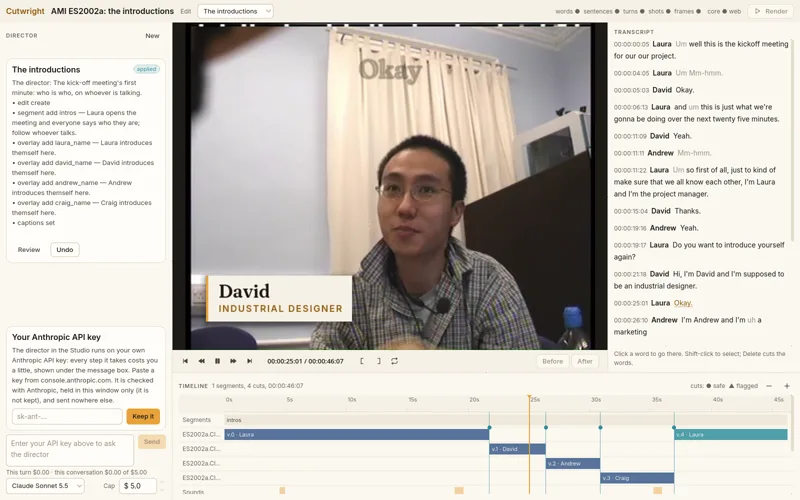
On the desktop and in the browser
The desktop Studio opens a project folder. The same Studio runs in Chrome or Edge on a desktop at cutwright.diy/app: it opens a demo in one click, or a project folder of yours, and footage you drop in is indexed, synced and exported in the page. Nothing leaves your computer. The Studio's director pane talks to Claude on your own Anthropic API key (on the desktop it can be kept where only you can read it; in the browser it is held for that window only), with what each turn costs shown under the message box and a cap you set. On the desktop you can direct from Claude Code instead, on your Claude plan, and review its proposals in the Studio.
Its panes
- The top bar: the project, the edit you are looking at, which parts of the index are built, and Render (on the desktop) or Export (in the browser).
- Director, on the left: the conversation, and each proposal as a card with what it does and why. Review it, then Approve, Reject or Lock it; Undo an applied one.
- The viewer, in the middle: the program as it plays, graphics drawn live over it, a Reelwright cutaway or cover where the render puts it, with the transport under it and Before and After to compare a proposal with the cut as it is.
- Transcript, on the right: what is said, by whom, with the words a proposal takes out struck through. Click a word to go there. Publish, beside it, shows the edit's publish kit: chapters, titles, description and the thumbnail as drawn.
- The timeline, below: the segments; a row for each camera; B-roll, generated segments, sounds, movements, graphics and Reelwright inserts each on rows of their own; the music with its level; each mic's waveform. Every cut is marked safe (●) or flagged (▲).
Render and Export make the program from the edit as it is, or as a proposal would leave it: an MP4, or a file for your editing app, the same as the command line makes.
Reviewing a proposal
Review a proposal and the viewer plays the program as the proposal would leave it. Press B to switch between before and after at the same moment, and Esc to end the review. The transcript strikes the words it takes out, and the timeline shows its cuts. Then decide: Approve, Reject or Lock, on its card.
Cutting in the transcript
You can cut by hand too. Click a word to go to it; Shift-click another to select the words between; Delete proposes cutting them, as a proposal of your own that opens for review and that you approve like any other. Esc clears the selection. In the message box, Enter sends and Shift+Enter starts a new line.
Keys
These work wherever the focus is but a text field.
| Key | Does |
|---|---|
| Space | Play and pause. |
| J K L | Shuttle: back, stop, forward; again to go faster. |
| ← → | Step a frame; ten with Shift. |
| Home End | The first frame, the last. |
| I O | Mark in, mark out. |
| Ctrl+L | Loop between the marks. |
| B | Before and after, while reviewing a proposal. |
| A | Propose showing the whole frame of the camera on screen, or its picture as found again. |
| + − | Zoom the timeline in and out. |
| 0 | Fit the whole program in the timeline. |
| Esc | End a review. |